
Wedding seating chart maker — on your own floor plan
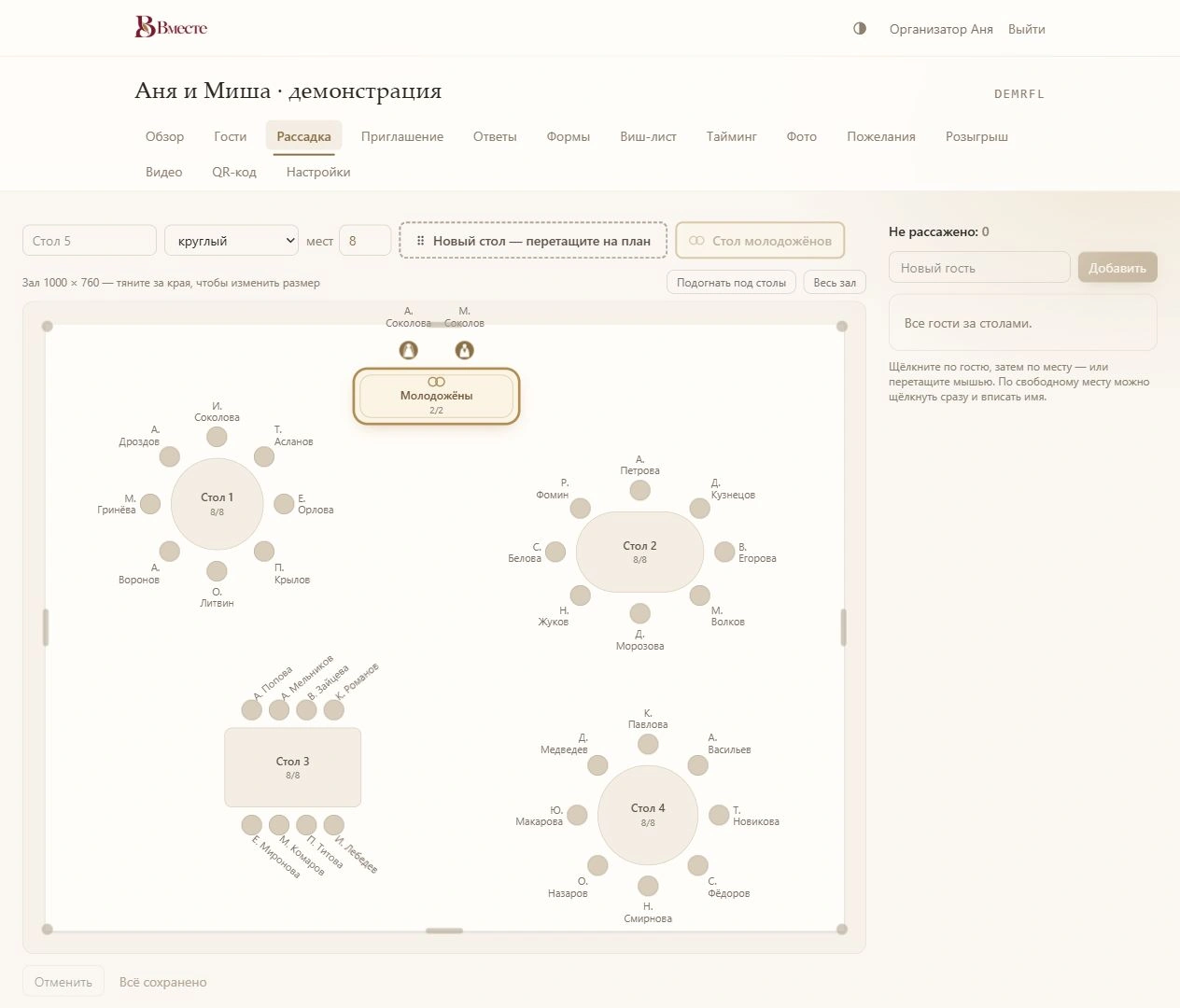
A wedding seating chart in Vmeste is a floor plan of your venue where you place the tables and drag guests into seats. It uses the same guest list as your invitations, so you can see who has accepted. On the day, guests scan a QR code at the entrance, type their name and see their table.
- Round, rectangular, oval and head tables — just like your venue
- A dedicated couple’s table with an adjustable number of seats
- Drag and drop on a computer, tap-to-seat on a phone
- PDF printing: floor plan, table cards and an entrance list
How to make a wedding seating chart online
From an empty room to a finished plan — no paper sketches or sticky notes.
Draw the room
Set the room size by dragging the edge of the plan, then add tables in the shapes you need. Change each table’s name, seat count and rotation in its panel.
Seat the couple
The couple’s table stands out on the plan. The bride and groom are seated there automatically, and you can add as many seats for the wedding party as you like.
Seat your guests
Drag a guest from the list onto a seat. On a phone, tap the guest, then tap a free seat. Someone missing from the list? Type their name straight into the seating chart.
Check the list view
Next to the plan, the same seating is shown as a list by table — handy for checking who sits with whom and moving people without dragging.
Print it
Generate a PDF with the floor plan and table cards. A paper copy saves the day if the venue’s internet goes down.
What the seating chart can do
Your real floor plan
Tables go where they actually stand, so guests and venue staff find their way more easily than with a plain list.
Tables of every shape
Round, rectangular, oval and head tables, each with its own seat count and name.
One guest list
Seating uses the same list as invitations and RSVPs. Guests who accepted come first, declines are flagged, and a plus-one from the RSVP can sit right next to their guest.
Guests find their own seat
A QR code at the entrance: guests type their name, the search copes with nicknames and typos, and their table lights up on the plan.
PDF printing
The floor plan, numbered table cards and a QR sign for the entrance — all built from the same data you see on screen.
Works on your phone
Fix the seating from your phone, even on the way to the venue — guests checking in see the update.
Where to start
Start with the list, not the plan: split guests into groups — the bride’s family, the groom’s family, colleagues, university friends. A group almost always fills one or two neighbouring tables, so seating becomes placing a handful of groups rather than a hundred individuals.
For a step-by-step method, common mistakes and etiquette, read how to make a wedding seating chart.
- Seat guests once most of them have RSVPed
- Couple’s table and parents first, then groups, then guests who come alone
- Keep couples and families together, children next to their parents
- Leave a seat or two free for last-minute changes
Frequently asked questions
Why use an online seating chart instead of paper?
On paper you draw the room, write names on sticky notes and move them around. The trouble starts with changes: every decline or new plus-one has to be moved by hand, then the table cards rewritten. Online, the plan, the guest list and the printouts update together.
How do guests find their table?
Put a sign with a QR code at the entrance. Guests scan it with their phone camera, type their name and see their table number and the room layout. For guests without a phone, print the alphabetical guest list with table numbers.
Can I do the seating chart on my phone?
Yes. On a phone you don’t drag — you tap a guest, then tap a free seat. There’s also a list view by table, without the plan.
What if someone isn’t on the guest list?
Type their name directly into the seating chart and they’re added to your guest list. A plus-one named in the RSVP form is also added and can be seated like any other guest.
Do we need internet at the venue?
Guests need mobile data to look up their table via the QR code. In case there’s no signal, print the floor plan, table cards and the guest list with table numbers in advance — the PDF uses the same data.
Can I change the seating at the last minute?
Yes. Changes are saved instantly, and anyone who scans the QR code afterwards sees their new table. Reprint any table cards that changed.
Helpful reading
- SeatingHow to make a wedding seating chart
A step-by-step method from guest groups to table cards — plus the etiquette that keeps everyone happy.
- GuestsHow to collect wedding RSVPs online
Which questions to ask, when to set the RSVP deadline and how to nudge guests who go quiet.
- InvitationsWedding invitation wording: 30 examples
30 ready-to-use examples in every tone, and the details every invitation needs so guests don’t have to ask.
Seat your guests on your own floor plan
Draw the room, drag guests into seats and print the table cards — at the entrance, everyone finds their own table.